

Download the sample file
Director: Handlers
Edit the Score Script with Lingo
Double click the first box in the score script. See the diagram below.
A script window will appear. Type the following code in the score script.
on exitFrame --exitFrame handler
go to the frame --This keeps the movie looping on frame 1 continuously.
end
Make a Text Box and name it
Use the Text Tool in the Tool Palette  to make a text box on the stage.
Open the Window->Inspectors->Property Inspector.
1) Go to the third tab for information. 
2) Type in a name for your new text box, call it: text box.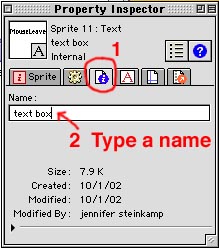
Create a Behavior Script for a button
Use the Button Tool  in the Tool Palette to make a button.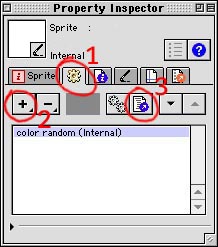
Open the Window->Inspectors->Property Inspector.
1) Go to the second tab for behaviors 
2) Click and hold on the top + button to add a new behavior. 
Name it Mouse Up Down
3) Click on the script icon to bring up the Script window 
Input the following code for the Mouse Up and Down Button behavior script:
on mouseDown --mouseDown handler
put "MouseDown is anywhere in the sprite" into member "text box"
end
on mouseUp --mouseUp handler
put "MouseUp is anywhere in the sprite" into member "text box"
end
Repeat the last process for all buttons
Mouse Enter and Leave behavior scripts:
on mouseEnter
put "MouseEnter is on the edge of the sprite" into member "text box"
end
on mouseLeave
put "MouseLeave is on the edge of the sprite" into member "text box"
end
Mouse Within behavior scripts:
on mouseWithin
put "MouseWithin is anywhere in the sprite, and it continually processes \
its commands. It is similar to ExitFrame." into member "text box"
sprite(2).locV = sprite(2).locV +1
end
-- The backslash \ lets you wrap long lines of text.
on mouseLeave
sprite(2).locV = 5 --Put the sprite back up to original position.
put "" intomember "text box"
end
Mouse Up Outside Behavior script
on mouseUpOutside
put "MouseUpOutside is anywhere in the sprite with a swipe \
outside of the sprite." into member "text box"
end
Use exitFrame Handler to cycle colors
Exit Frame behavior script
Select a black painting or some text, add this behavior.
-- Use a timer to change between 16 colors.
global i -- i is a variable i made up
on exitFrame -- exitFrame keeps running or looping
i = i + 1 -- counter, keep adding 1 to i as the exitframe loops
if i >= 16 then -- if i is greater than 16 set back to 0
i = 0
end if
member(other text box).foreColor = i + 55
--change between 16 colors, + shift over to color # 55
end
Create a Start Stop Movie Script to clear out the text box.
Open the Window->Script Window
Hit the + button to create a new script
Name it start stop movie script
Input the following code:
on startMovie
put "" into member "text box" -- Put no text into the field.
end
on stopMovie
put "" into member "text box"
end
Change the script to a Movie Script:
Use the Window->Property Inspector
Go to the second tab called Script
Switch the type from Behavior to Movie
NOTE: If you do not do this it will not work.